
Getting Started
Flowr is a MIDI chord controller that turns your Android phone into an expressive music-making tool. Connect to your DAW, hardware synths, or other music apps and start playing chords instantly.
The Interface
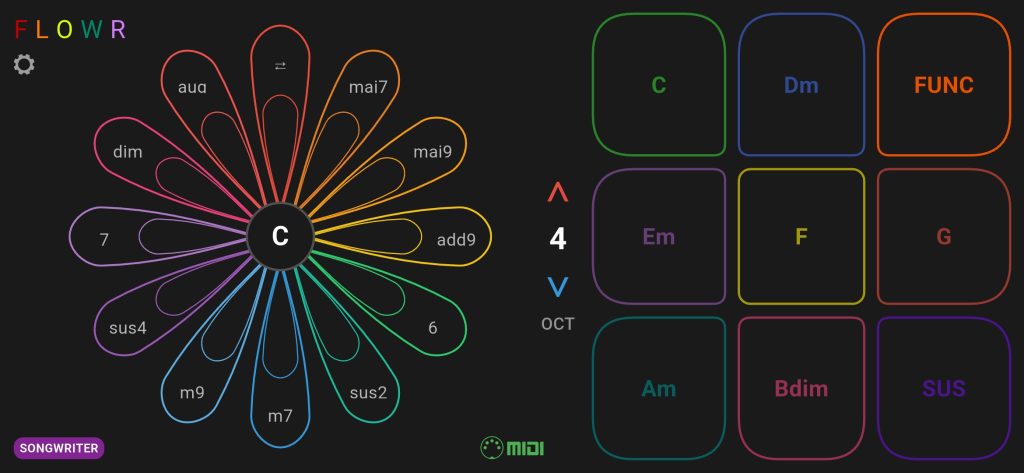
Petal Wheel (Left)
The colourful flower-shaped wheel in the centre of the screen. Each petal represents a chord colour (maj7, add9, sus2, etc.). Touch a petal to modify the chord you play.
- Outer petals — Spread voicings for a rich, open sound
- Inner petals — Voice-led voicings for smooth progressions
- Centre — Shows your current key (tap to change)
Chord Pads (Right)
Nine pads for triggering chords. Each pad also works as an XY controller — drag your finger while holding a chord to send MIDI CC messages.
Octave Control
The up/down arrows between the wheel and pads shift your octave range (2-6).
Mode Button (Bottom Left)
Shows your current play mode. Tap to open settings.
MIDI Indicator (Bottom Centre)
Shows MIDI connection status.
Play Modes
Songwriter Mode
Best for: Writing progressions, exploring harmony
Pads trigger scale degrees (I, ii, iii, IV, V, vi, vii°) in your chosen key. The wheel colours your chords with extensions.
| Pad | Degree | In C Major |
|---|---|---|
| Top-left | I | C |
| Top-middle | ii | Dm |
| Middle-left | iii | Em |
| Middle-centre | IV | F |
| Middle-right | V | G |
| Bottom-left | vi | Am |
| Bottom-middle | vii° | Bdim |
Special pads:
- FUNC — Hold + tap wheel centre to change key
- SUS — Sustain pedal (holds notes)
Top petal (⇄) — Quality toggle. Flips major chords to minor and vice versa. Press Em + ⇄ = E major!
Explorer Mode
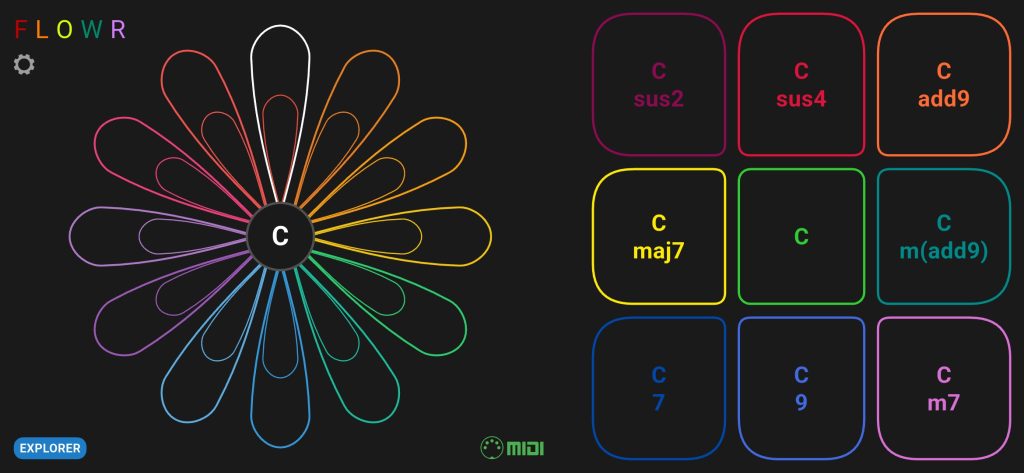
Best for: Navigating the circle of fifths, discovering keys
The wheel becomes a key selector. Touch a petal to select that key, then play chord variations on the pads.
Parallel Mode
Best for: Chromatic movement, same chord across all roots
All 12 keys available simultaneously. Every pad plays the same chord type but with different roots.
Changing Key
In Songwriter Mode
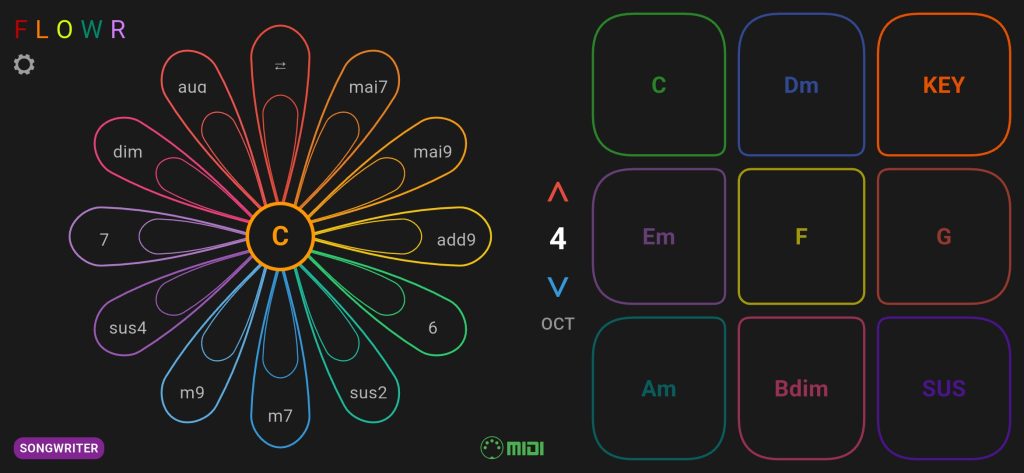
- Hold the FUNC pad (shows “KEY”)
- Tap the centre of the wheel
- Rotate to select your new key
- Release FUNC to confirm
In Explorer Mode
Simply touch a petal on the wheel to select that key.

MIDI Setup
Open settings (gear icon, top-left) and scroll to MIDI Output:
Apps (Inter-app MIDI)
Connect to other Android music apps like:
- FL Studio Mobile
- Caustic
- G-Stomper
- Any app that accepts MIDI input
The other app should see “Flowr” or “FlowrMIDI” as a MIDI input device (may show as “Unknown” on some synth apps).
USB (PC / Hardware)
Connect your phone to a computer or hardware synth via USB cable.
For PC/Mac:
- Connect USB cable
- On your phone, pull down the notification shade
- Tap the USB notification → Select MIDI
- Your DAW should see a new MIDI input (usually shows as “MIDI Input” or similar generic name)
For hardware synths: Use a USB OTG adapter if your synth has USB MIDI input.
XY Pad Expression
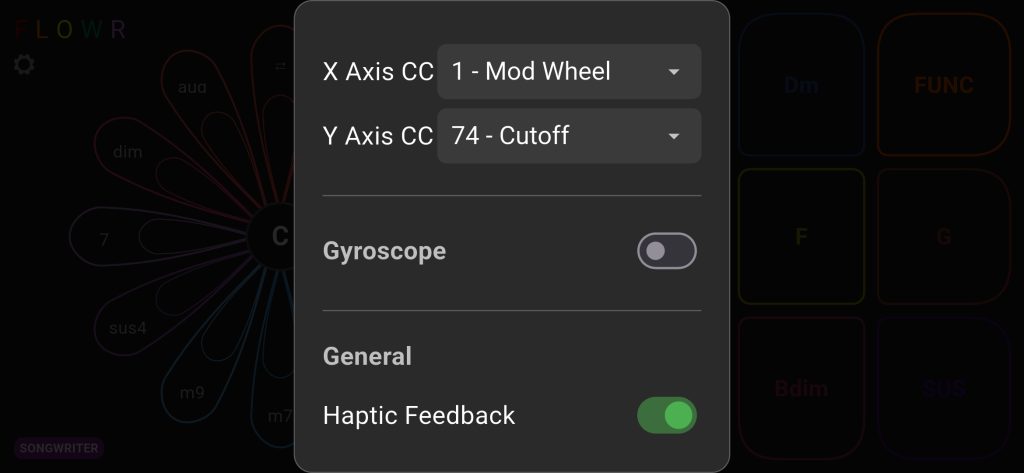
Every chord pad doubles as an XY controller. While holding a chord, drag your finger to send continuous MIDI CC messages.
Configure in Settings:
- X Axis CC — Horizontal movement (default: CC1 Mod Wheel)
- Y Axis CC — Vertical movement (default: CC74 Cutoff)
Great for filter sweeps, vibrato depth, or any parameter your synth supports.
Gyroscope Control
Enable Gyroscope in settings to control MIDI with device tilt.
- Tilt left/right → X axis CC
- Tilt forward/back → Y axis CC
Subtle movements create expressive, organic modulation.
Voicing System
Flowr uses intelligent voicing to make your chords sound professional:
Pads Only (No Petal)
Open triad voicing — root, third, fifth spread across octaves. Rich and full.
Outer Petals
Spread voicing with extensions — 7ths, 9ths, and colour tones voiced for clarity.
Inner Petals
Voice-led voicing — the app automatically finds the smoothest path between chords, minimising hand movement like a pianist would.
Settings Reference
| Setting | Description |
|---|---|
| Play Mode | Songwriter / Explorer / Parallel |
| MIDI Output | Apps (inter-app) / USB (PC/hardware) |
| X Axis CC | MIDI CC for horizontal XY movement |
| Y Axis CC | MIDI CC for vertical XY movement |
| Gyroscope | Enable tilt-based CC control |
| Haptic Feedback | Vibrate on pad/petal touch |
Tips & Tricks
- Voice leading magic — In Songwriter mode, use inner petals for buttery smooth progressions. The app handles inversions automatically.
- Quick key changes — FUNC + wheel centre lets you change key without stopping playback.
- Expression while playing — Drag on the XY pad mid-chord for filter sweeps and swells.
- The ⇄ toggle — Instant borrowed chords! Turn a minor iv into a major IV, or make that V chord minor for a moody vibe.
- Sustain for layering — Hold SUS, play multiple chords, release for a big wash of sound.
Troubleshooting
No MIDI output?
- Check MIDI Output setting (Apps vs USB)
- For USB: Make sure phone is set to MIDI mode (not charging/file transfer)
- For Apps: Check the receiving app is listening for MIDI input
Chords sound wrong?
- Check you’re in the right key (shown in wheel centre)
- Check your octave setting isn’t too high/low
App won’t connect to PC?
- Use a data-capable USB cable (not charge-only)
- Pull down notification shade → tap USB notification → select MIDI
- Restart your DAW after connecting
Support
Website: getflowr.io Help & Feedback: getflowr.io/support
Made for musicians, by musicians 🌸